Biggest Pixma Ts302A Buying Mistakes (And How to Avoid Them)
The consumer electronics market is flooded with high-end, multi-functional behemoths that promise to do everything from scanning 3D objects to brewing coffee. Yet, for a significant portion of the population—students, home office workers with limited desk space, and casual users who only need to print an occasional shipping label or recipe—the appeal of a minimalist, budget-friendly device like the Pixma Ts302A is undeniable. It is a printer designed for simplicity, emphasizing a compact footprint and wireless connectivity over industrial-scale output.
However, that very simplicity is often a double-edged sword. Because the Pixma Ts302A occupies a specific niche in the market, consumers frequently approach the purchase with the wrong set of expectations. Mistakes made during the buying process can lead to frustration, unexpected costs, and a device that fails to meet the user's practical needs. Avoiding these pitfalls requires a deep dive into the technical specifications, the total cost of ownership, and the specific ergonomic design of the unit. This guide serves as a comprehensive roadmap to help potential buyers navigate the complexities of this entry-level model and ensure their investment is sound.
Detailed Product Analysis: What Is the Pixma Ts302A?
To understand the potential mistakes, one must first understand what the Pixma Ts302A actually is. It is essentially a wireless "single-function" inkjet printer with a clever design twist. Unlike traditional All-in-One (AiO) printers that include a built-in flatbed scanner, the Ts302A utilizes a "Smartphone Copy" feature. The top of the printer is designed with a grid-like texture and edge guides to help users align documents. When paired with a dedicated mobile application, the user’s smartphone camera becomes the scanner, and the printer then produces the hard copy.
Under the hood, the device uses a two-cartridge system: one pigment-based black ink cartridge for sharp text and one dye-based tri-color cartridge for graphics and photos. It offers a maximum color resolution of 4800 x 1200 dpi, which is surprisingly high for its price bracket, allowing for decent photo reproduction on gloss paper. Connectivity is primarily handled through Wi-Fi, AirPrint, and Google Cloud Print, making it a "mobile-first" device. It is intended for light-duty cycles, perhaps a few dozen pages per month, rather than consistent daily volume.
Mistake #1: Misunderstanding the "Copy" Capability
Perhaps the most frequent mistake buyers make is assuming that because the word "Copy" appears in the promotional materials, the device features a physical scanner. For many, the lack of a glass flatbed is a dealbreaker discovered only after unboxing. If a buyer regularly needs to scan sensitive legal documents, fragile old photographs, or thick book pages, the "Smartphone Copy" method may be inadequate. The quality of the scan depends entirely on the user's phone camera and their ability to hold it steady in good lighting.
To avoid this mistake, evaluate your scanning frequency. If you scan more than once a month, or if you require the high-fidelity optical resolution of a dedicated CIS (Contact Image Sensor) flatbed, the Ts302A is likely the wrong choice. However, if your "scanning" needs are limited to digitizing the occasional receipt or school permission slip, the space saved by removing the flatbed scanner is a massive benefit.
Mistake #2: Overlooking the Long-Term Cost of Ink
In the world of electronics, the initial price tag is rarely the final cost. The Pixma Ts302A is often sold at a very low entry price, which lures in budget-conscious shoppers. The "trap" here lies in the replacement ink cartridges. The device uses the PG-243 and CL-244 series cartridges (or the higher-capacity XL versions). Because this is a two-cartridge system, if you run out of magenta ink, you must replace the entire tri-color cartridge, even if your cyan and yellow levels are still high.
Serious buyers should calculate the "cost per page." For a device like this, the cost per page for color printing can be significantly higher than that of a mid-range printer or a continuous ink tank system. Buying this printer for high-volume school projects or a home business is a mistake that will result in the user spending more on ink within six months than they spent on the printer itself. This device is most economical for those who print less than 20 pages a month.
Mistake #3: Assuming Automatic Duplexing Is Included
In an era where environmental consciousness and paper conservation are front and center, many users take automatic double-sided printing (duplexing) for granted. The Pixma Ts302A does not support automatic duplexing. To print on both sides of a page, the user must manually take the paper out of the output tray, flip it, and re-insert it into the rear tray. For a 20-page document, this becomes a tedious and error-prone task.
Discover deals on Electronics — updated daily.
See Deals →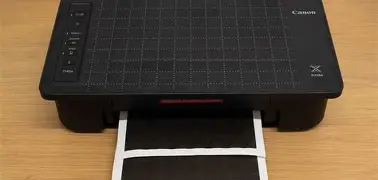
Buyers who frequently print multi-page reports or e-books will find this limitation incredibly frustrating. To avoid this, determine if "green" printing is a priority for you. If you rarely print more than two pages at a time, manual duplexing is a minor inconvenience. If you are a heavy reader who likes hard copies of long articles, you should look for a model with an "Auto-Duplex" feature.
Technical Comparison: Pixma Ts302A vs. Standard AiO Models
The following table illustrates the trade-offs between this specialized compact model and a standard entry-level All-in-One printer to highlight where most buying errors occur.
| Feature | Pixma Ts302A | Standard Entry-Level AiO |
|---|---|---|
| Scanner Type | Smartphone Camera Assisted | Integrated Flatbed Glass |
| Physical Size | Ultra-Slim / Compact | Bulkier / Tall Profile |
| Ink System | 2-Cartridge (Black/Tri-Color) | 2-Cartridge or Individual Colors |
| Duplex Printing | Manual Only | Often Automatic |
| Paper Feed | Rear Tray (60 Sheets) | Front or Rear (100+ Sheets) |
| Primary User | Casual / Smartphone Focused | Home Office / Family |
Mistake #4: Ignoring Workspace Ergonomics
The Pixma Ts302A is marketed as a "compact" printer, which is true in terms of its height and depth. However, it utilizes a rear-loading paper tray. This means the paper sits vertically or at a slight angle at the back of the device. Consequently, you cannot place this printer in a tight cubby hole or a shelf with low vertical clearance, as you need space to feed the paper in from the top-rear.
Many buyers measure the "box" size of the printer but forget to account for the "active" size. When the paper tray is extended and the output tray is pulled out…
Pros and Cons Analysis
- Pro: Minimalist Design - Its slim profile makes it easy to store in a drawer or on a small corner desk when not in use.
- Pro: Excellent Photo Quality - For its price, the 4800 dpi resolution produces vibrant, sharp borderless photos (up to 4x6).
- Pro: Easy Wireless Setup - The dedicated "Wireless Connect" button simplifies the handshake between the printer and the home router.
- Con: High Ink Maintenance - The tri-color cartridge system is inherently wasteful for users who print specific colors more than others.
- Con: Slow Print Speeds - With approximately 7.7 images per minute (ipm) in black and 4.0 ipm in color, it is not built for speed.
- Con: No LCD Screen - All troubleshooting is done through your computer or smartphone, as there is no on-device display for error messages.
- Con: Fragile Paper Support - The rear tray supports are somewhat thin and can be prone to snapping if the printer is moved or handled roughly.
Buying Guide: Is the Pixma Ts302A Right for You?
To avoid the common mistakes mentioned above, you should put yourself through a "usage audit" before clicking the buy button. This guide helps categorize whether the Ts302A fits your lifestyle.
The "Ideal" Buyer Profile
The ideal buyer for the Ts302A lives in a dormitory, a studio apartment, or a tiny home. They primarily use a tablet or smartphone rather than a traditional PC. Their printing needs are sporadic: a boarding pass here, a homework assignment there, and perhaps a festive photo for the refrigerator once a month. They value the fact that they can hide the printer away when it isn't in use and aren't bothered by using their phone to make a "copy" of a document.
The "Warning" Buyer Profile
If you are a parent with three children in school, a college student writing a 50-page thesis, or a freelancer running a consulting business, the Ts302A will likely become a source of stress. The low speed, the manual flipping of pages for double-sided printing, and the frequent ink changes will hinder your productivity. In these scenarios, spending 50% more upfront on a more robust model will save hundreds of dollars and hours of time in the long run.
Network Considerations
A technical mistake often overlooked is network compatibility. The Ts302A relies heavily on a 2.4GHz Wi-Fi band. If your home network is exclusively 5GHz or has complex security protocols (common in some corporate-managed apartment complexes), you may struggle with the initial setup. Ensure your router is dual-band or allows for 2.4GHz connections before committing to a wireless-only workflow.
Shop the latest Electronics picks on Amazon.
Browse Now →Mistake #5: Neglecting Paper Type Limitations
Because it is an entry-level printer, some buyers assume it can handle heavy cardstock or specialty materials for crafting. While the rear-feed path is "straighter" than a front-loading cassette (which helps prevent jams), the rollers on the Ts302A are not designed for very thick media. Using overly heavy paper can burn out the motor or cause persistent "out of paper" errors as the rollers fail to grip the surface.
Buyers interested in scrapbooking or creating heavy-duty wedding invitations should consult the maximum GSM (grams per square meter) rating in the user manual. For the Ts302A, sticking to standard 20lb bond paper or dedicated 4x6 photo paper is the safest route to longevity. Trying to force it to be a professional "crafting" printer is a common and expensive error.
Understanding the Warranty and Support Lifecycle
Another mistake is failing to realize the "disposable" nature of ultra-budget electronics. If the Pixma Ts302A experiences a significant mechanical failure outside of the localized warranty period, the cost of professional repair will almost certainly exceed the cost of a brand-new unit. This is not a device built to last fifteen years. It is a utility device with a projected lifespan of three to five years under light use.
Buyers should approach the purchase with a "functional lifespan" mindset. If you need a "forever" printer, you are looking in the wrong category. If you need a reliable bridge for the next few years of schooling or a temporary home-office setup, the Ts302A is a perfectly logical choice—provided you don't overwork it.
Conclusion
Buying a printer like the Pixma Ts302A is an exercise in managing expectations. The biggest mistakes—assuming it has a flatbed scanner, underestimating ink costs, and ignoring the physical requirements of a rear-feed tray—all stem from a lack of research into the device's specialized design. It is not an inferior printer; rather, it is a highly specific one. It sacrifices versatility for the sake of price and size.
By recognizing the "Smartphone Copy" workflow for what it is, calculating your monthly print volume to see if a two-cartridge system is affordable, and measuring your workspace for vertical clearance, you can avoid the most common buyer's remorse associated with this model. When matched with the right user, the Ts302A provides a sleek, modern, and effective solution for the digital-first generation who occasionally needs to live in a paper world. Treat it as a light-duty tool for a mobile lifestyle, and it will serve its purpose admirably. Expect it to be a heavy-duty office workhorse, and you will find yourself back in the electronics aisle sooner than you hoped.